
Google Analytics is an essential tool that your business needs to be using, to understand how your digital marketing efforts are performing. It can help you track online traffic, allow you to understand user behaviour and it can improve your SEO and content marketing to name just a few of the benefits. You read more about the benefits of Google Analytics here.
Sharing the valuable data Google Analytics offers is incredibly important. Ensuring your team has access to the insights available is a must to ensure the work they are doing is delivering a return on investment. As a digital agency, access to our clients Google Analytics is also important for a couple of reasons. From a web development perspective, it allows us to access the tracking code that we implement on the site during the build stage. From a digital marketing perspective,
However, sharing this access needs to be done properly. To make sure that your accounts are streamlined, Google often uses the same login to access all aspects of its services, such as Analytics, AdWords and even Gmail, and the last thing we'd recommend is sharing your usernames and passwords! Thankfully Google has made it really simple to provide different levels of access
This short guide will walk you through how to share access to your Google Analytics account.
Step 1
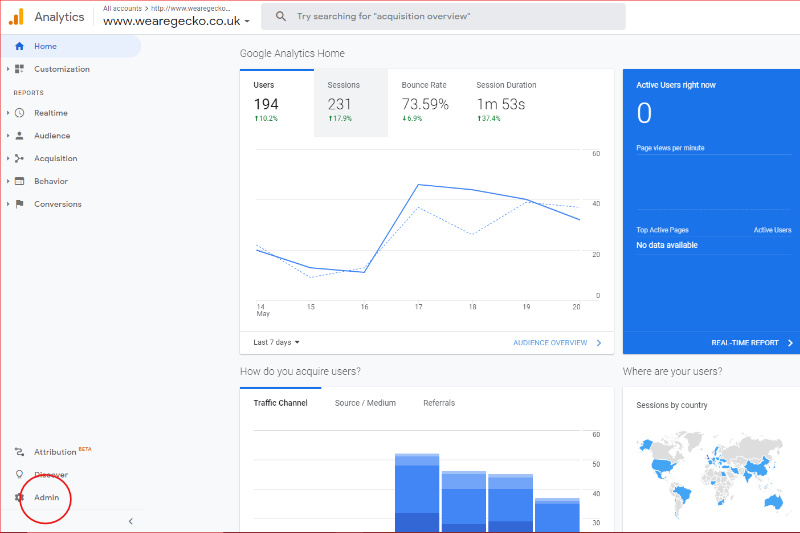
Sign in to your Google Analytics account and select 'Admin', which can be found in the bottom left corner.
Step 2
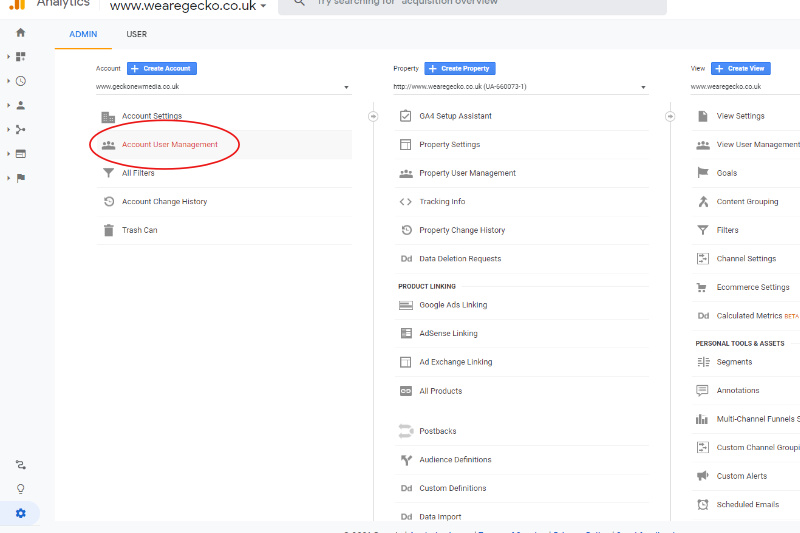
Next select 'Account User Management'.
Step 3
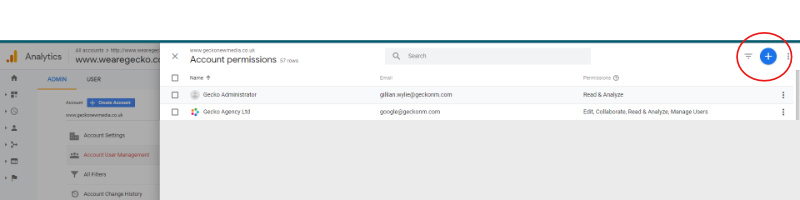
Click the blue + button and select 'add users'.
Step 4
The final stage is to enter the email of the person you want to share the account with and select their level of permissions by checking one of the boxes.
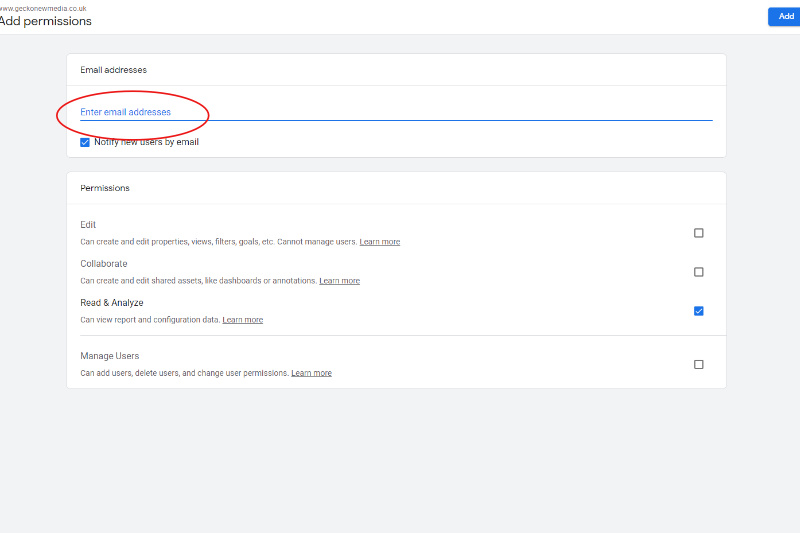
As you can see, there are a number of permissions to choose from:
- Edit: Can perform administrative and report-related functions (e.g., add/edit/delete accounts, properties, views, filters, goals, Channel Grouping, etc., but not manage users), and see report data.
- Collaborate: Can create, edit, delete and share personal assets. Can collaborate on shared assets. Includes Read & Analyse.
- Read & Analyse: Can see report and configuration data; can manipulate data within reports (e.g., filter a table, add a secondary dimension, create a segment); can create personal assets, and share them, and see shared assets. Cannot collaborate on shared assets.
- Manage Users: Can manage account users (add/delete users, assign any permissions). Does not include Edit or Collaborate. Can grant full permissions to any user, including themselves, for any account, property, or view for which they have this permission.
Once you have added the user, an email will be sent to them inviting them to access the account.